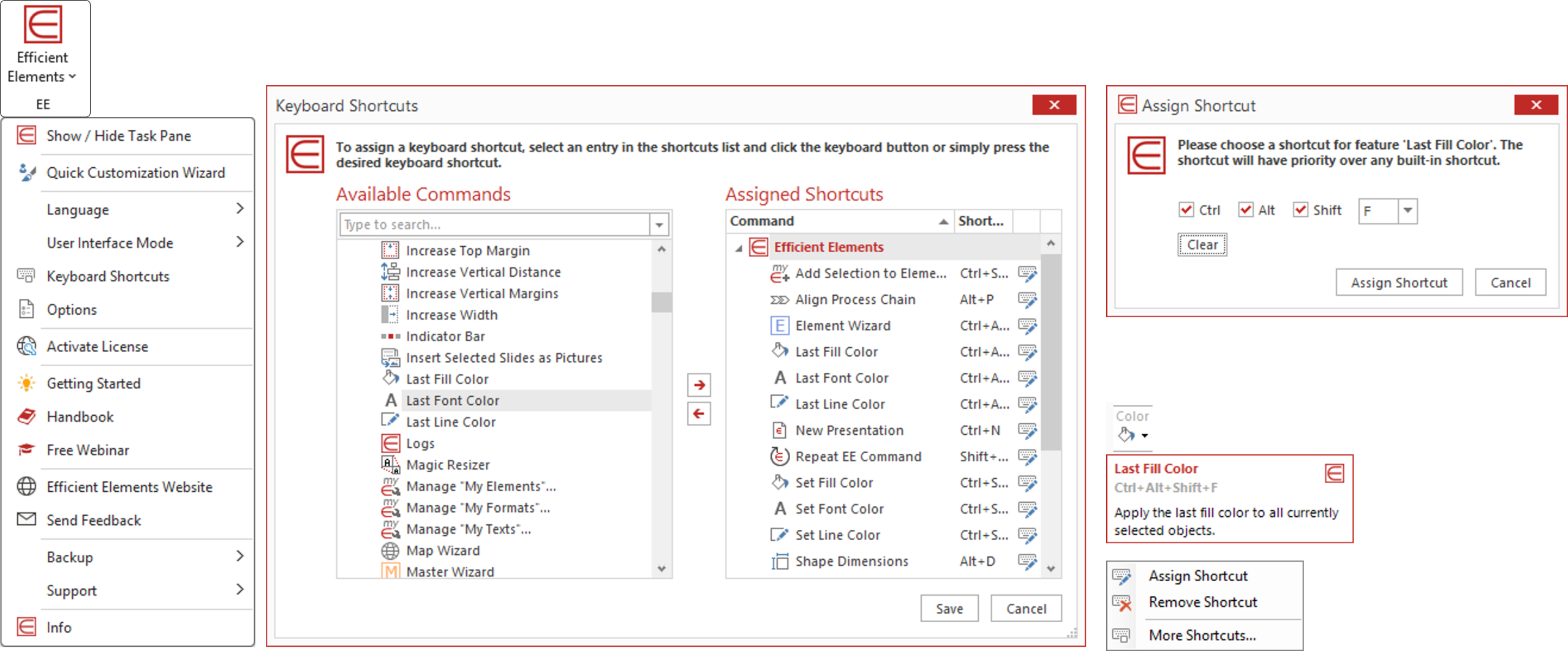
- Open the Efficent Elements menu in your “Home” tab.
- Select “Keyboard Shortcuts”.
- Select a command in the “Available Commands” pane on the left (or multiple by holding down Ctrl/Shift).
If you scroll down, you’ll also find the PowerPoint features to which you can assign a shortcut. - Click the right arrow button between the two panes to add the command(s) to the “Assigned Shortcuts” pane.
- Select the added command and simply press the desired keyboard shortcut to assign the shortcut, or click the “Edit” button on the far right to assign the shortcut in a dialog.
- Moving over the button of your taskpane the shortcut is shown.
- You can edit, assign, or remove shortcuts by right-clicking on the button of your taskpane.

1
2
3
4
5
6
7
1
Open the Efficent Elements menu in your “Home” tab.
2
Select “Keyboard Shortcuts”.
3
Select a command in the “Available Commands” pane on the left (or multiple by holding down Ctrl/Shift).
4
Click the right arrow button between the two panes to add the command(s) to the “Assigned Shortcuts” pane.
5
Select the added command and simply press the desired keyboard shortcut to assign the shortcut, or click the “Edit” button on the far right to assign the shortcut in a dialog.
6
Moving over the button of your taskpane the shortcut is shown.
7
You can edit, assign, or remove shortcuts by right-clicking on the button of your taskpane.
