THE WIZARDS
Format Wizard
Format and position selected objects based on a Format Wizard template
— one click instead of a dozen manual adjustments.
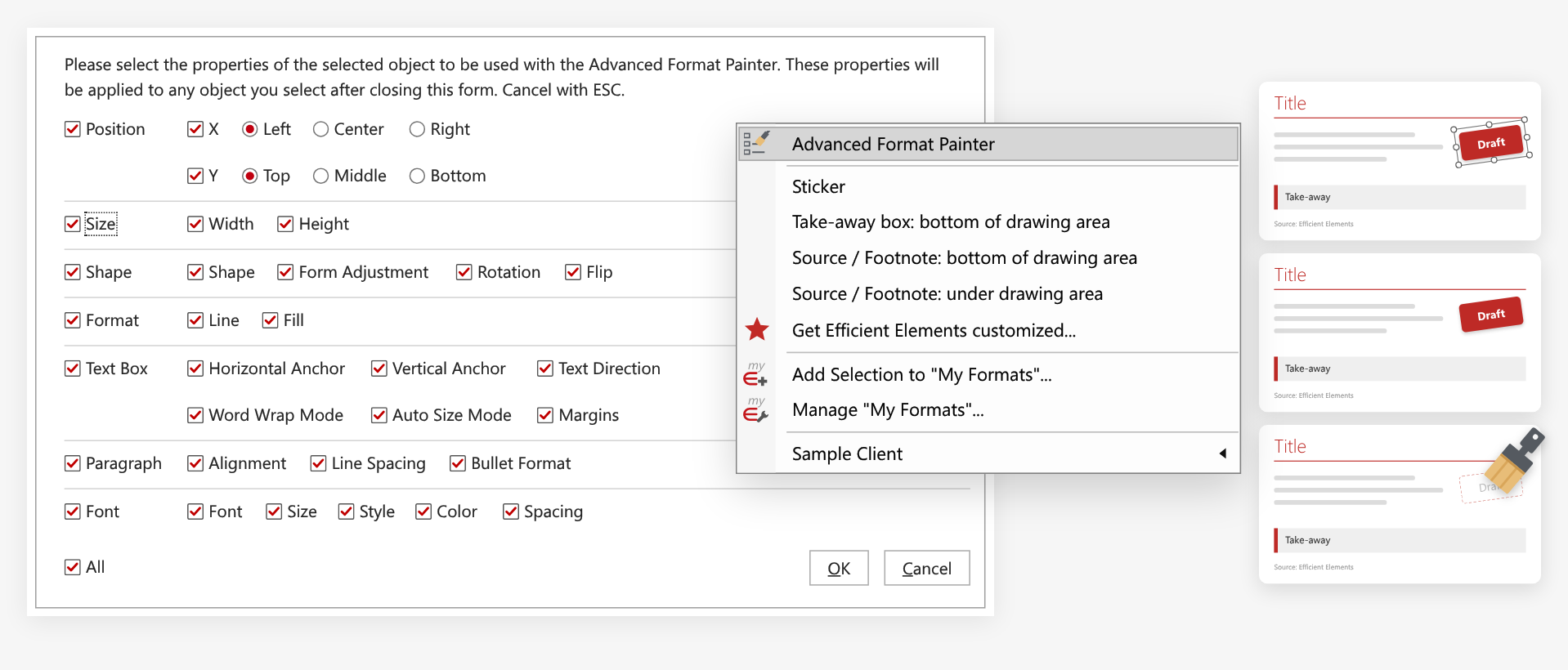

Format and position selected objects based on a Format Wizard template
— one click instead of a dozen manual adjustments.
Apply predefined formatting and positioning to selected objects with a single click.
Turn your company’s style guidelines into reusable formats for consistent layouts, typography, and spacing.
Store custom presets in My Formats and reuse or share them with colleagues whenever you need them.
Define exactly how selected objects should look and where they belong — from one position or font size to a complete combination of formatting attributes.
Set exact positions for recurring elements such as titles, subtitles, stickers, sources, and footnotes.
Define a single attribute such as font size or position, or combine multiple PowerPoint formatting properties in one rule.
Use predefined rules across recurring slide elements so positioning and formatting stay predictable throughout the deck.
Combine the Format Wizard with other Efficient Elements tools to streamline workflows, save time, and keep your team on track. Explore more features and discover how they work together across your presentations.
Explore FeaturesYes. You can create custom presets with My Formats and save them for reuse. Once defined, they can be applied across slides and presentations — and shared with colleagues to keep formatting consistent across the team.
Yes. The Format Wizard can be tailored to your company’s style guide, including typography, colors, spacing, and positioning. This helps ensure that recurring slide elements stay aligned with your brand standards.
No. Once the presets are set up, users can apply the right formatting and positioning with a single click. That means even non-designers can create slides that stay visually consistent.
