THE WIZARDS
Master Wizard
Insert or remove elements in the slide master
with a single click of a button.

Insert or remove elements in the slide master
with a single click of a button.
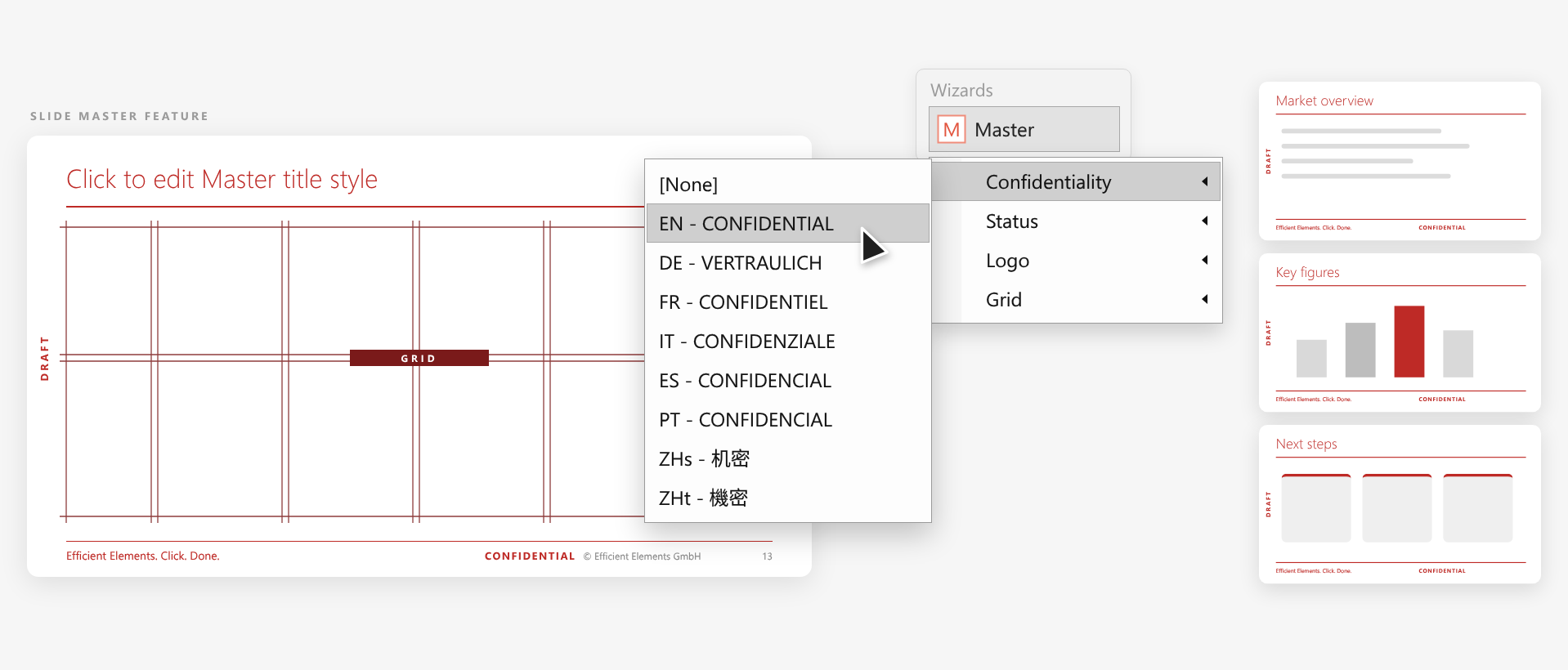
Insert or remove confidentiality lables in the slide master with a single click.
Insert or remove status labels in the slide master with a single click.
Insert or remove logos and images in the slide master with a single click.
Insert or remove predefined elements in the slide master without navigating through master view — keeping recurring labels and visual elements easy to manage.
Insert or remove master elements instantly without navigating into master view or making manual edits.
Choose the confidentiality label you need — including EN, DE, FR, IT, ES, PT and Chinese variants — or switch it back to none.
Add or remove status labels, logos, and images from the slide master whenever needed.
Combine the Master Wizard with other Efficient Elements tools to streamline workflows, save time, and keep your team on track. Explore more features and discover how they work together across your presentations.
Explore FeaturesYes. We can implement any number of status or confidentiality labels upon request.
Yes. We can customize the Master Wizard to perfectly fit each of your slide layouts.
Yes, users can still modify the master if needed in special cases.
