
IMAGE LIBRARY INTEGRATION

Find images
without leaving
PowerPoint

Access image libraries directly inside Efficient Elements and place visuals into slides in seconds.
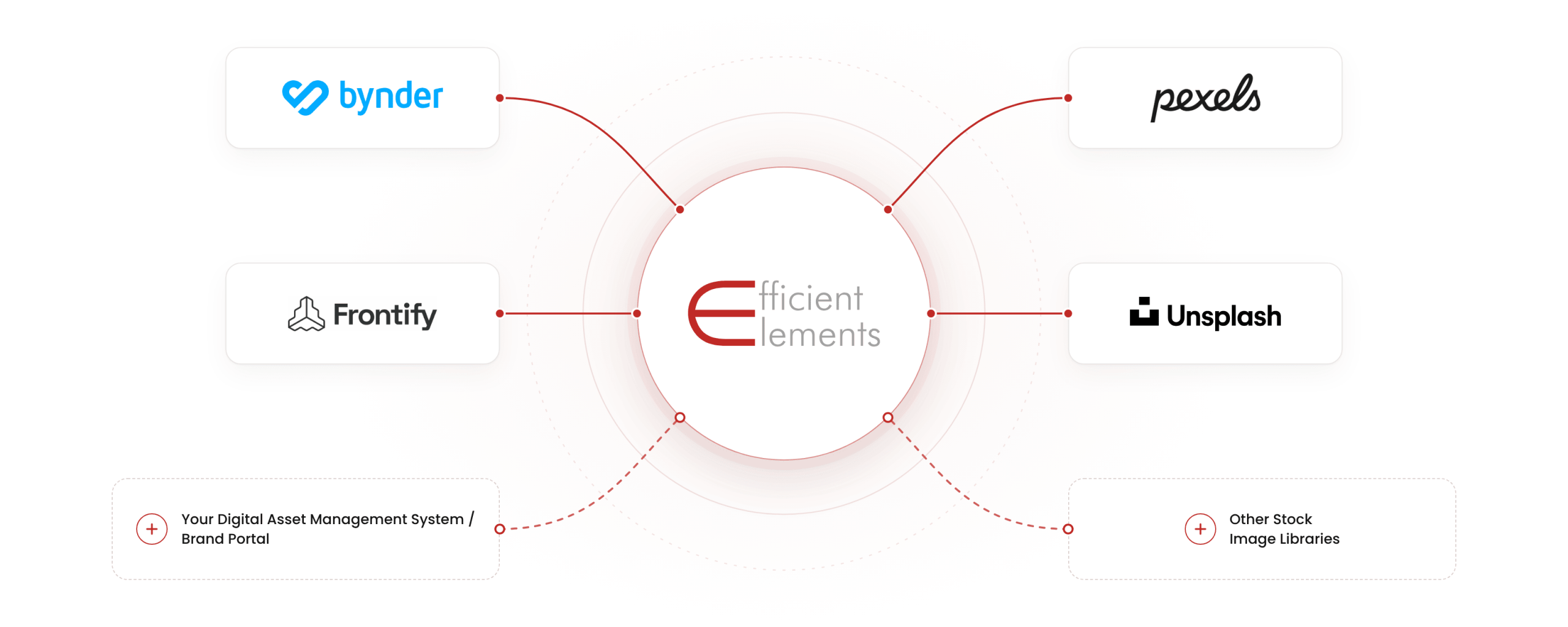

Efficient Elements integrations with Bynder, Pexels, Unsplash and Frontify

What it does

The Image Wizard lets you browse supported image libraries inside Efficient Elements and place images directly into your presentation — no switching between browser, downloads, and PowerPoint.

Trusted by leading companies worldwide

Siemens
Ford
United Airlines
Capgemini
Allianz
Puma
SAP
Telefónica
adidas
UniCredit
Visa
Jungheinrich
Lufthansa
Altman Solon
Swiss Re
AB InBev
Volkswagen
Nestlé

How it works

01

Open your preferred image library in an embedded browser

02

Find what you need without leaving PowerPoint

03

Select an image and insert it instantly into your slide

04

No manual downloads or file handling required

Why teams use it

A lightweight way to find and insert images while building slides —
focused on speed, clarity, and everyday presentation work.

Saves time when creating slides
One less tool to switch to
Image sourcing simple and consistent
Built for the way decks actually get made
Efficient Elements education workspace

Fast to use, nothing to manage

The Image Wizard gives you fast access to images exactly when you need them — while keeping asset management simple and out of your way.

Got questions?
We've got
answers.

Which image libraries are supported?

The Image Wizard connects to selected image libraries that are directly available inside Efficient Elements. Available sources depend on your configuration and edition.

Do I need to open a browser or download images manually?

No. Images are searched and inserted directly from within Efficient Elements — without switching tools or saving files locally.

Are images inserted directly into my PowerPoint slides?

Yes. Selected images are placed directly into your presentation, ready to use and fully editable like any other slide content.