
Efficient Elements. Click. Done.
Efficient Elements for presentations – The Add-in for Microsoft PowerPoint
Overview
Agenda Wizard
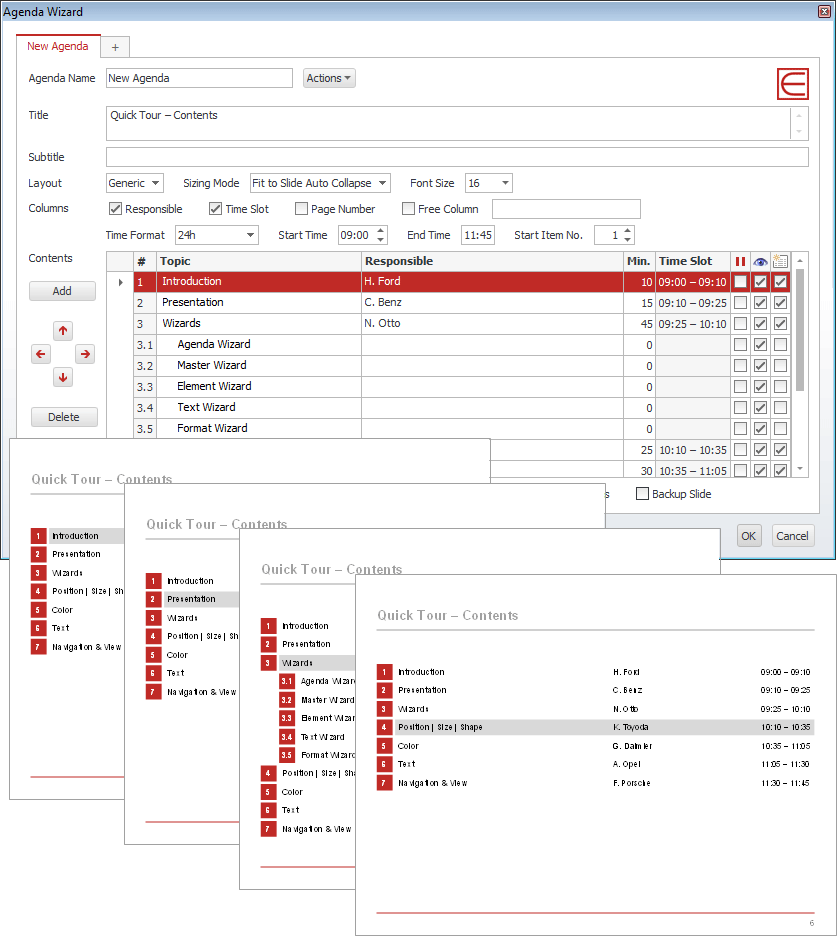
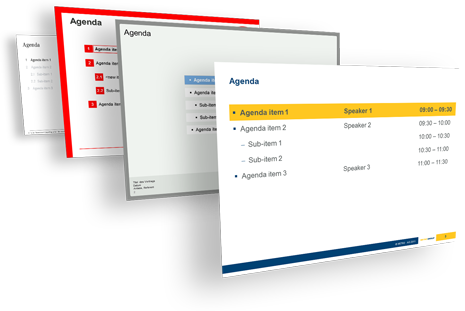
The Agenda Wizard helps you structure your presentations by adding agenda slides between topics:
- Calculate time slots or page numbers automatically
- Create multiple agendas for a single presentation, e.g. for multi-day-meetings
- Save space in long agendas by collapsing sub-items
- Easily reorgnize your agenda – content slides will be sorted for you automatically
- The Agenda Wizard is 100% customizable to fit your company’s specific agenda layout!
Element Wizard
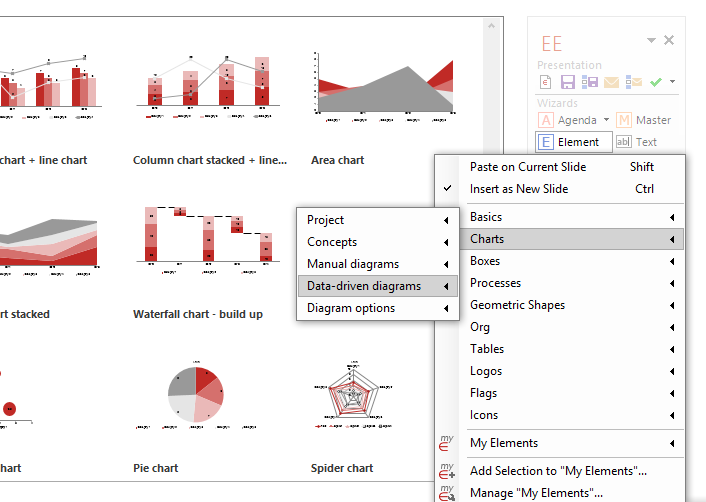
The Element Wizard provides you with a well-organized set of useful slide elements in an easy-to-navigate gallery structure:
- Pick from a selection of box layouts, process chains, Gantt charts, diagrams, maps, flags …
- Get a customized edition to include your company’s slide collection
- Use the My Elements feature to store your own elements for later use and share them with your colleagues
Master Wizard
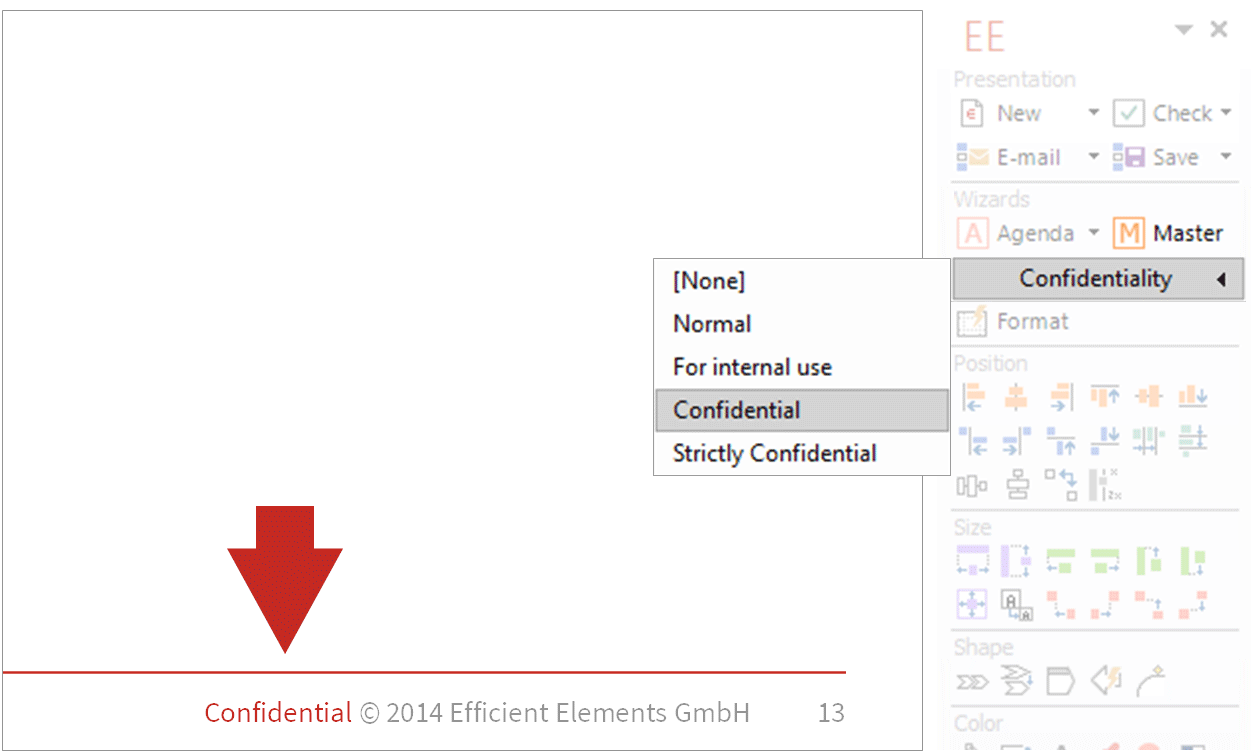
Insert/remove elements in/from the slide master with a single click of a button, such as
- Confidentiality indications
- Status indications
- Logos or images
- …
Text Wizard
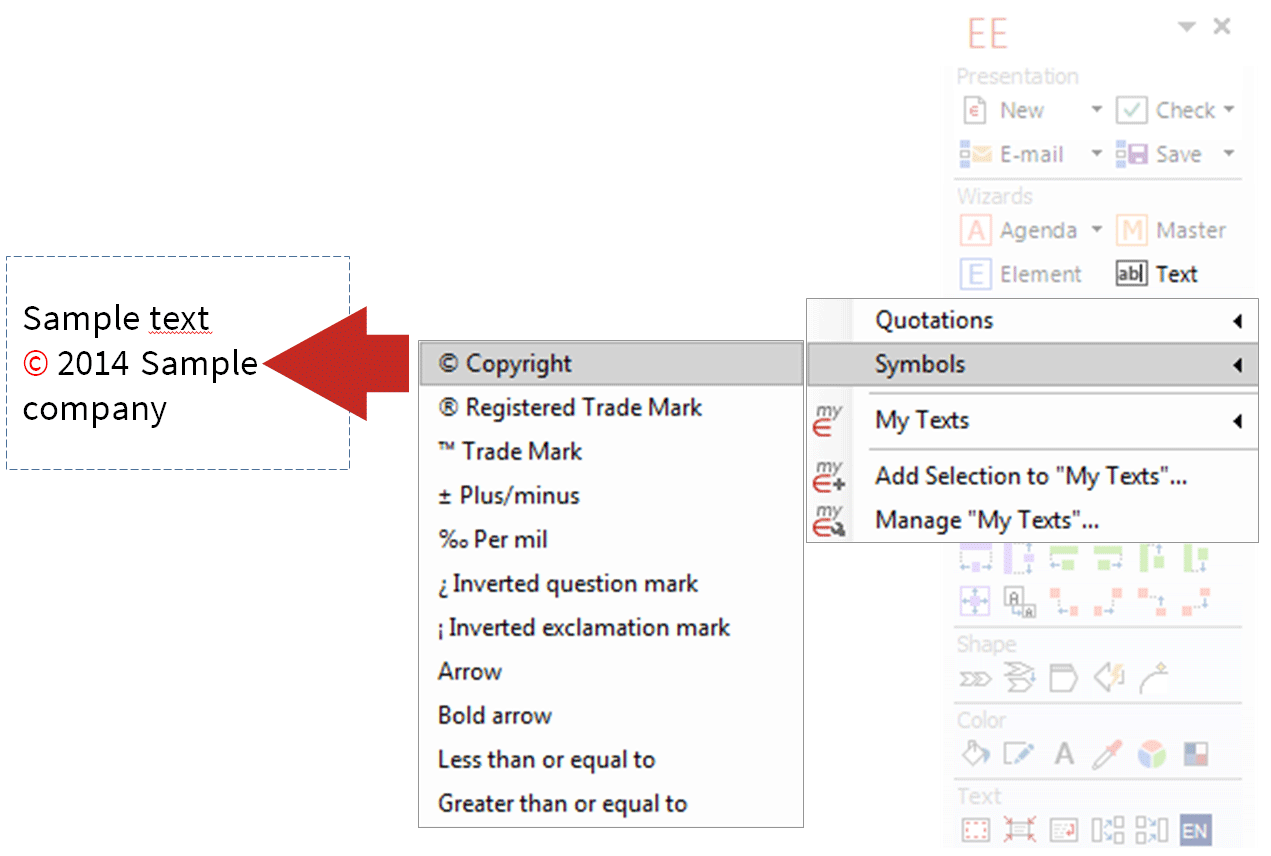
Insert text snippets or special characters from the Text Wizard library
- Get a customized edition to include text snippets relavant for your company, e.g. addresses, mission statement, conventions for numbers/dates/abreviations…
- Use the My Texts feature to store your own text snippets for later use and share them with your colleagues
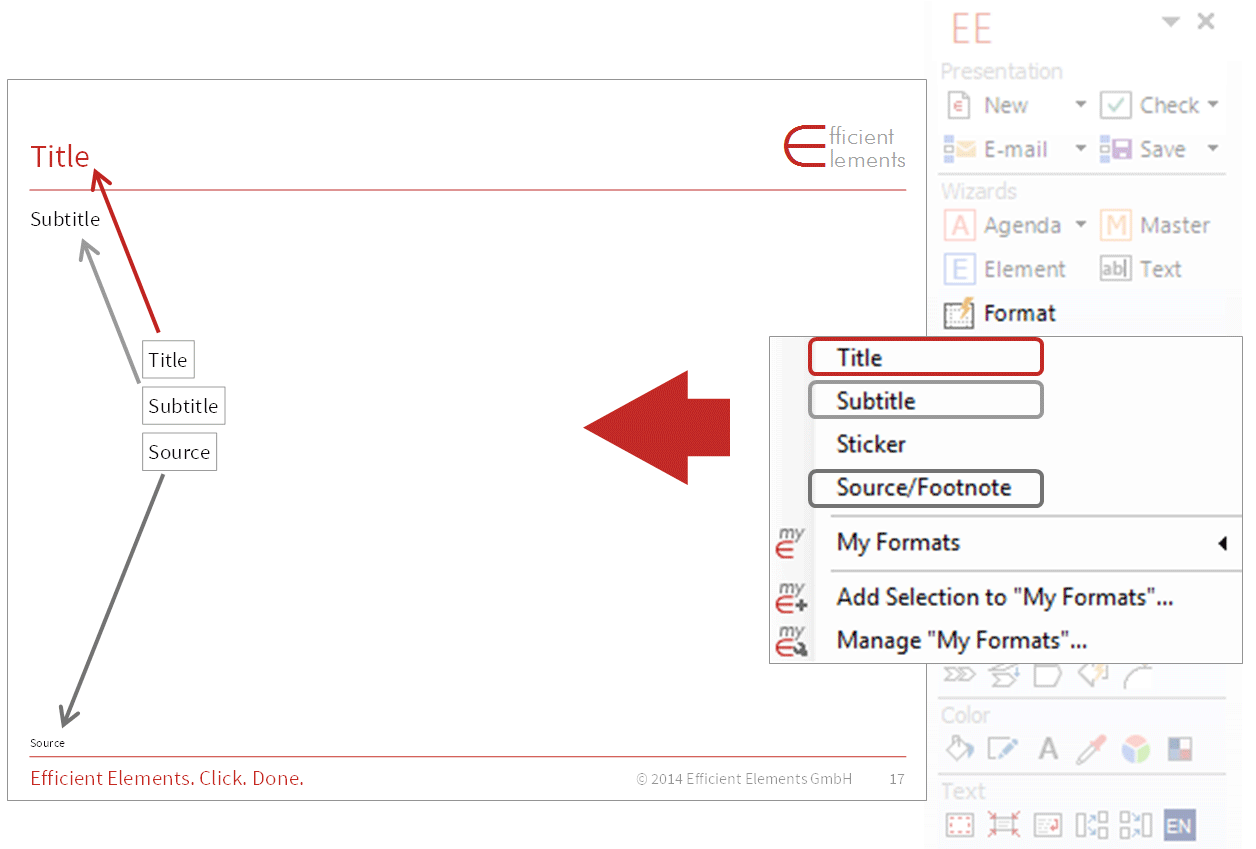
Format Wizard
Format and/or position selected objects based on a Format Wizard template:
- Possible predefined formats range from a position or a font size to a combination of most of the format attributes available in PowerPoint
- Get a customized edition to include predefined formats according to your company’s style guide
- Use the My Formats feature to store your own forats for later use and share them with your colleagues
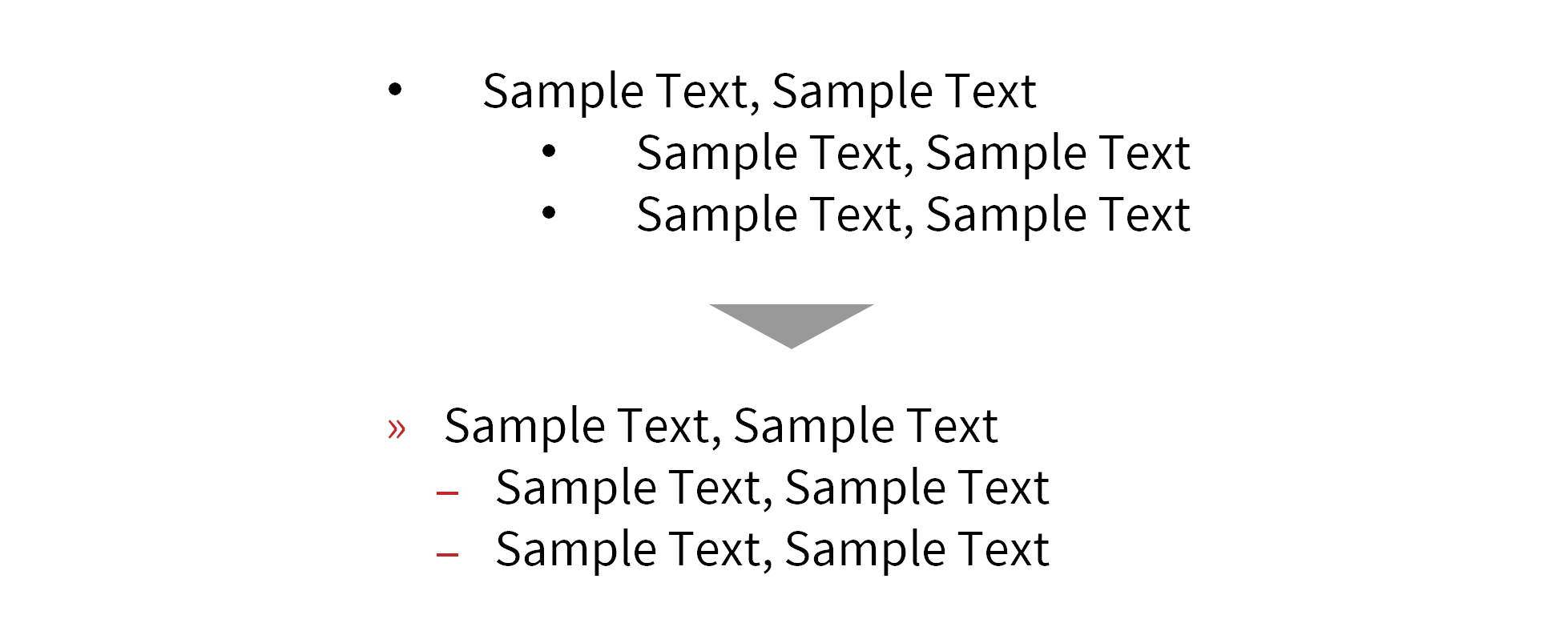
Default Bullets | Numbering


If you have trouble with getting the bullets in your presentations to match your corporate design, you will love this feature. One click and your bullets will appear as they should.
- Turn bullets/numbering on | off …
- Increase | decrease indent level (works across cells of tables as well)
- Apply default bullets/numbering format
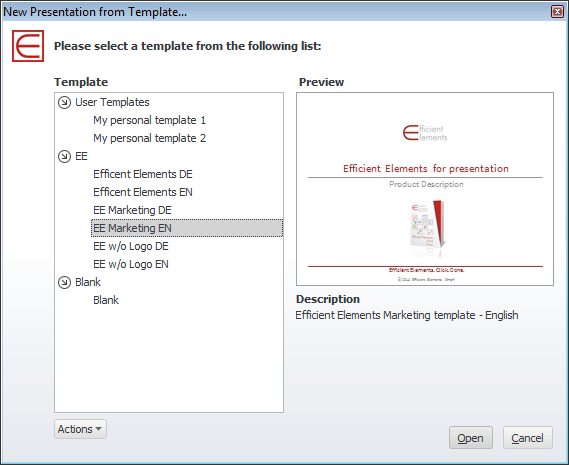
Manage Your Own | Your Clients' Templates
We can integrate all the templates and styles you might need.
- Pick the desired template from a list with preview
- Set the PowerPoint start-up template
- Change the template of the current presentation to reuse slides for a different customer
- Use our update service to add templates/styles later – your colleages will be updated automatically
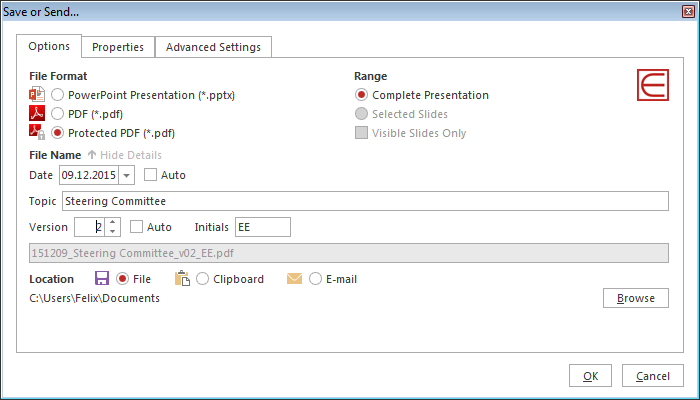
E-Mail | Save Selected Slides


Select slides in the slide sorter and attach them to a new email either as a PowerPoint file or a PDF file.
Select slides in the slide sorter and save them as a new PowerPoint file, a PDF file or to the clipboard (as .pptx or .pdf). By saving the selected slides to the clipboard you will be able to paste them into an existing email.
Check Presentations


Clean up your presentation with a view clicks. Additional functions, such as a corporate design check, will be added in the near future.
- Remove all speech notes to avoid inadvertently conveying confidential information
- Remove all animations
- Remove unused designs from the current presentation to reduce file size
Align Position


Align all selected objects to the respective edge of the Master. The Master is always the object that you selected last. If only one object is selected, the object is aligned to the respective edge of the slide.
Dock Objects


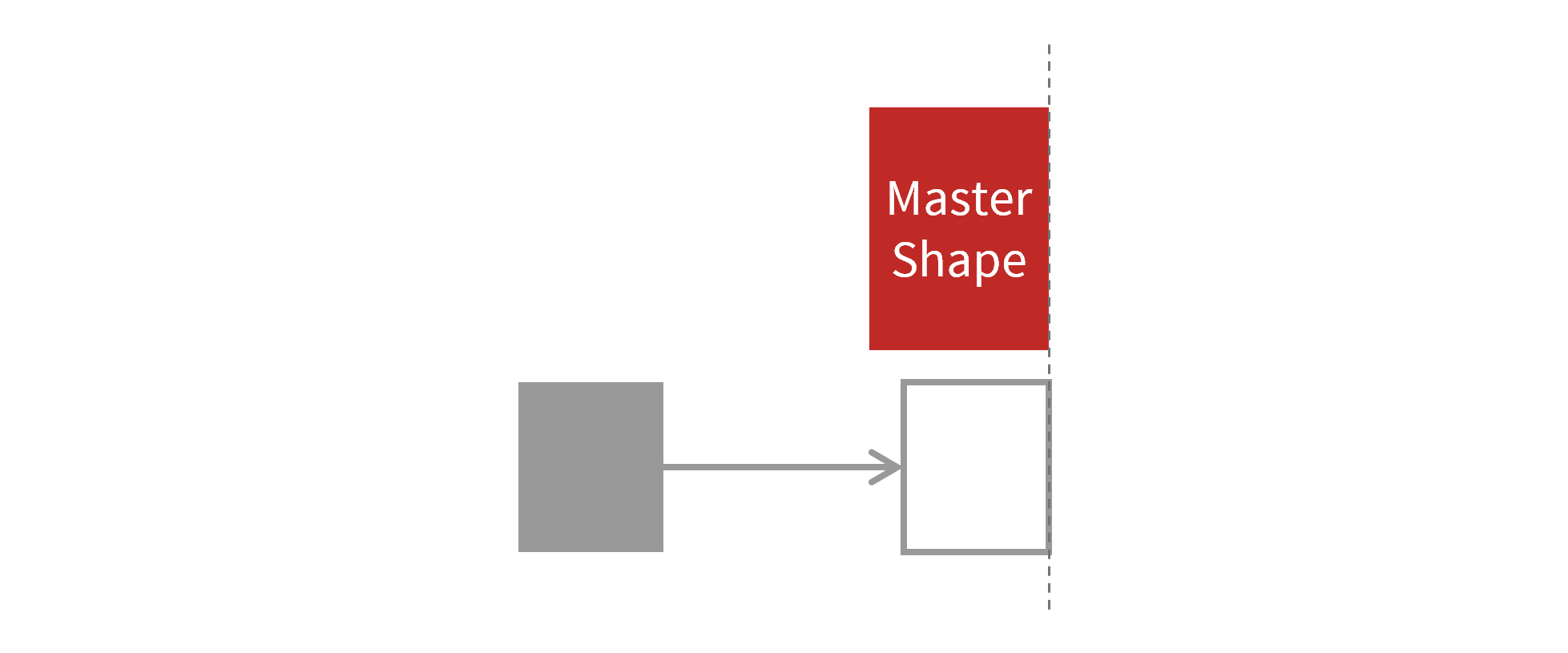
Move the selected objects in the respective direction until they touch the Master. The Master is always the object that you selected last.


Stack Objects

Stack the selected objects horizontally / vertically so that they touch each other. The stacking takes place in the order of selection.
Switch Objects
Switch two selected objects. You can specify relative to which corner or edge the objects should be switched, and whether also the layer position should be switched.

Align Size


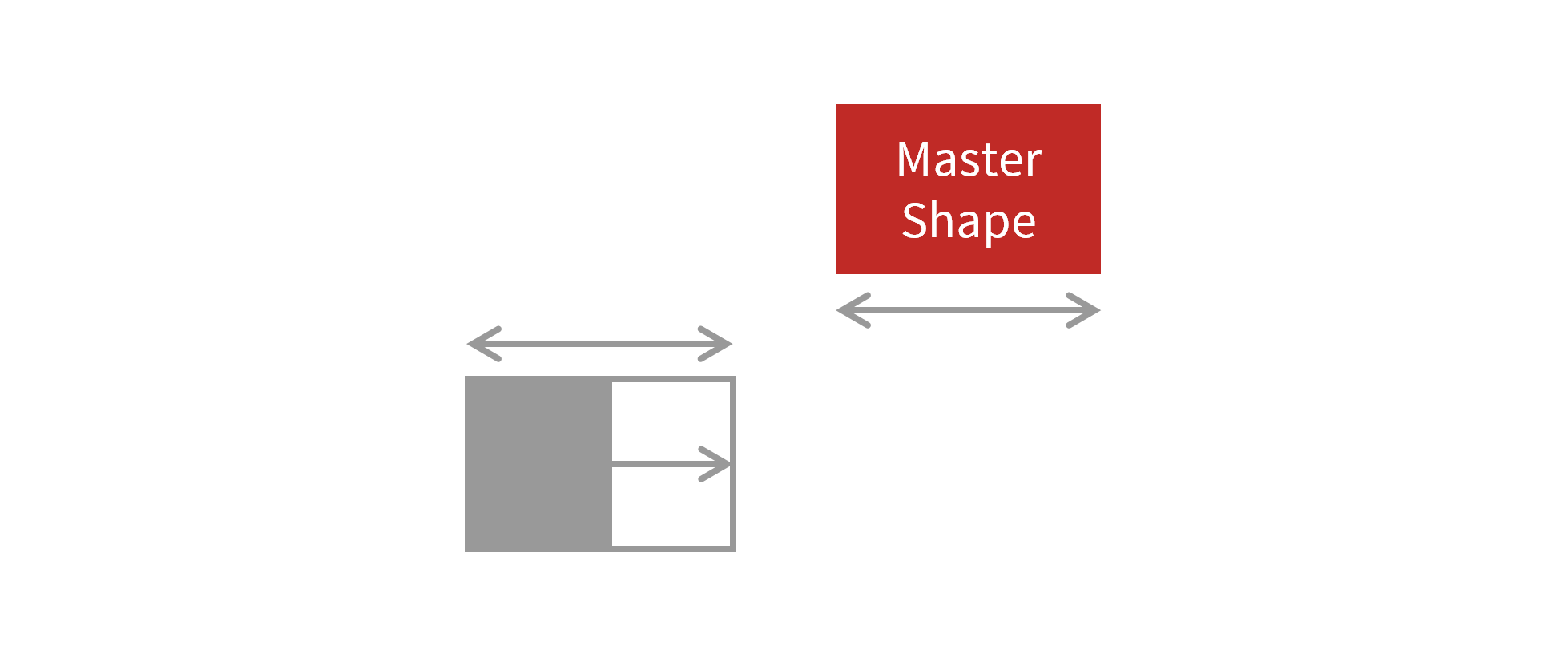
Align the size of all selected objects to the size of the Master, either for width, height, or both. The Master is always the object that you selected last.
Stretch Objects


Stretch the selected objects to the far edge of the Master. The Master is always the object that you selected last.
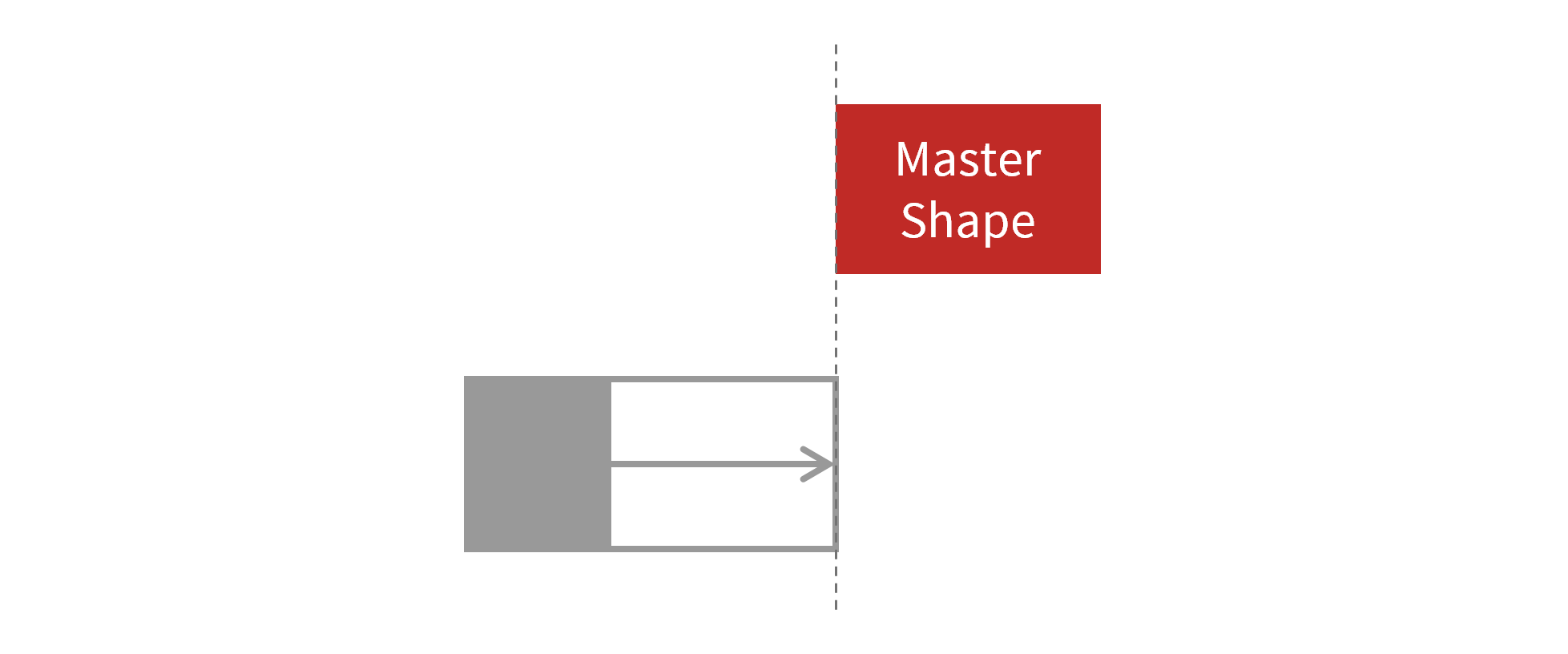
Fill Space Between Objects


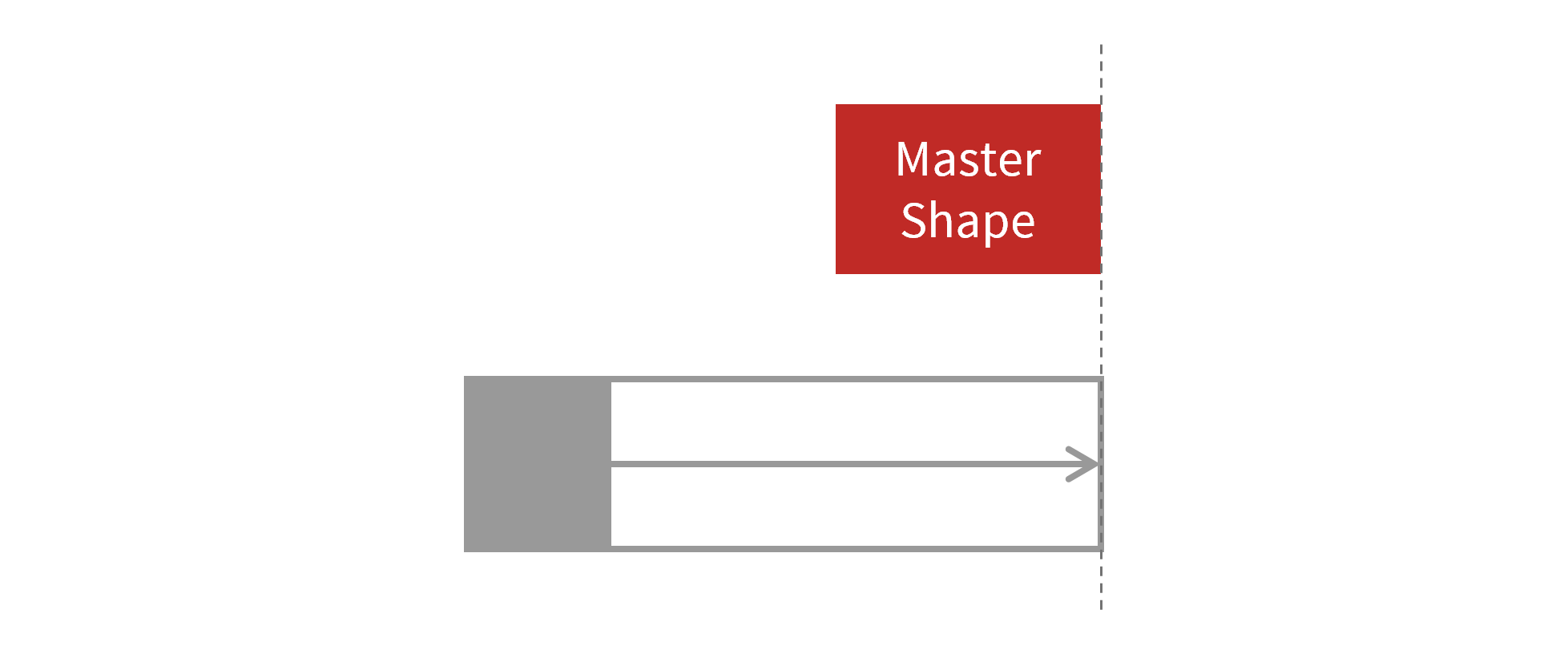
Fill the gap between all selected objects and the Master (if any). The Master is always the object that you selected last.
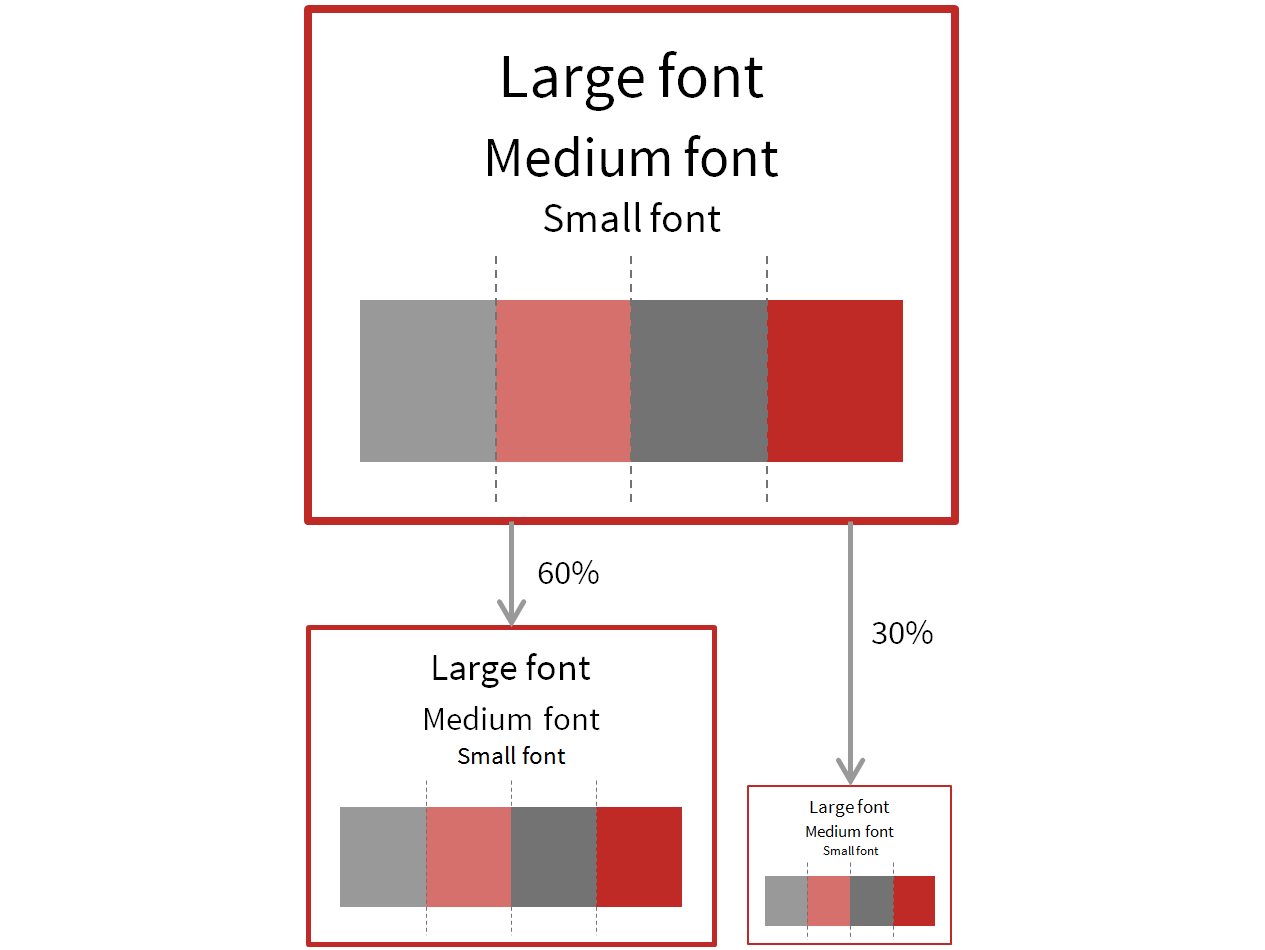
Magic Resizer
Resize the selected objects to a given absolute or relative size. You can choose to which attributes (size, line weight, font size etc.) the resizing factor should be applied.
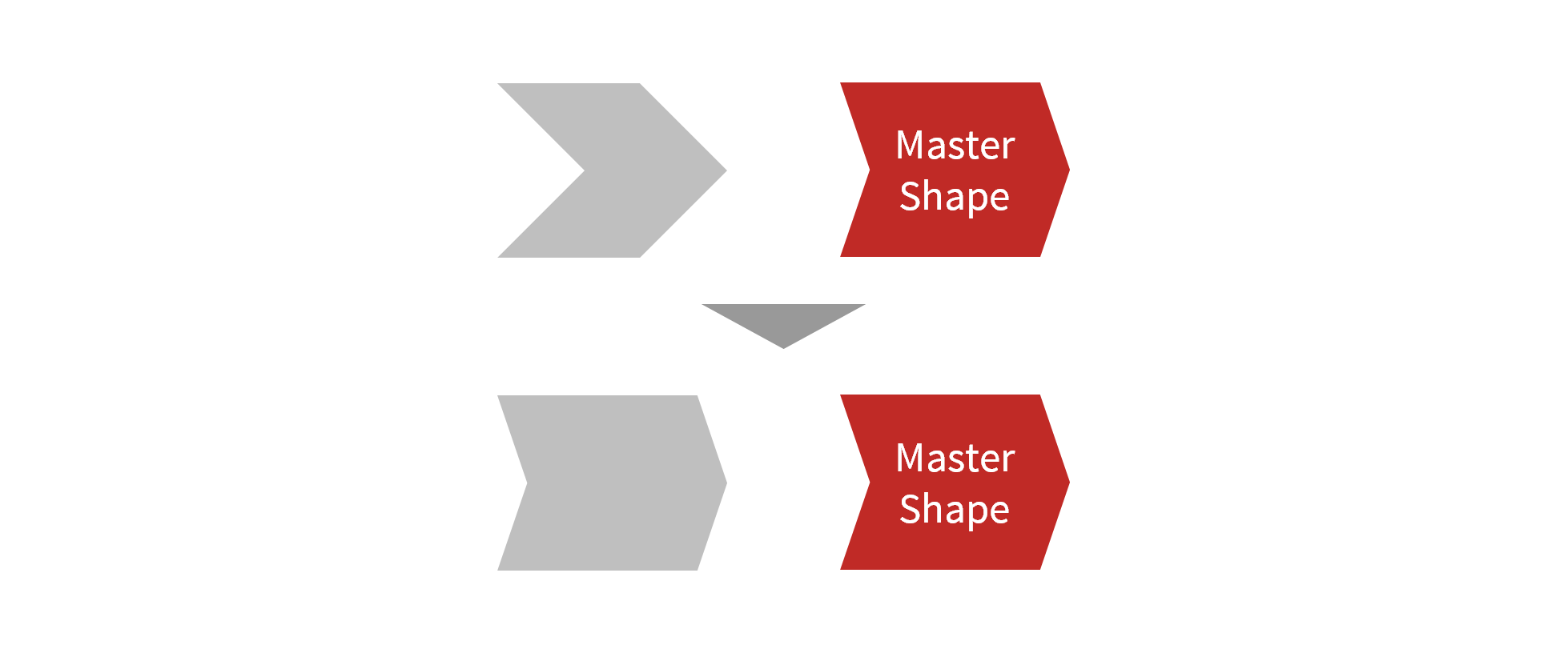
Align Angles
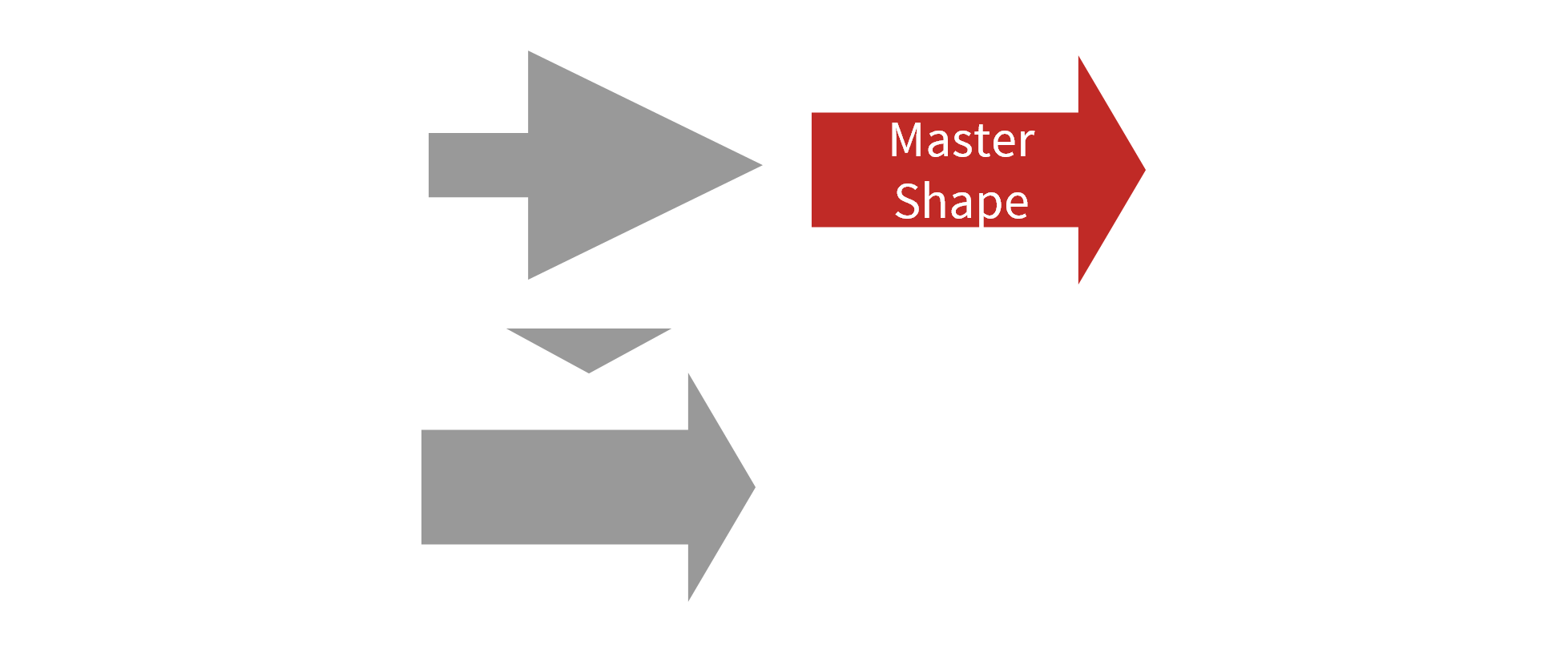
Align the angles of all selected block arrows to the Master. The Master is always the object that you selected last.
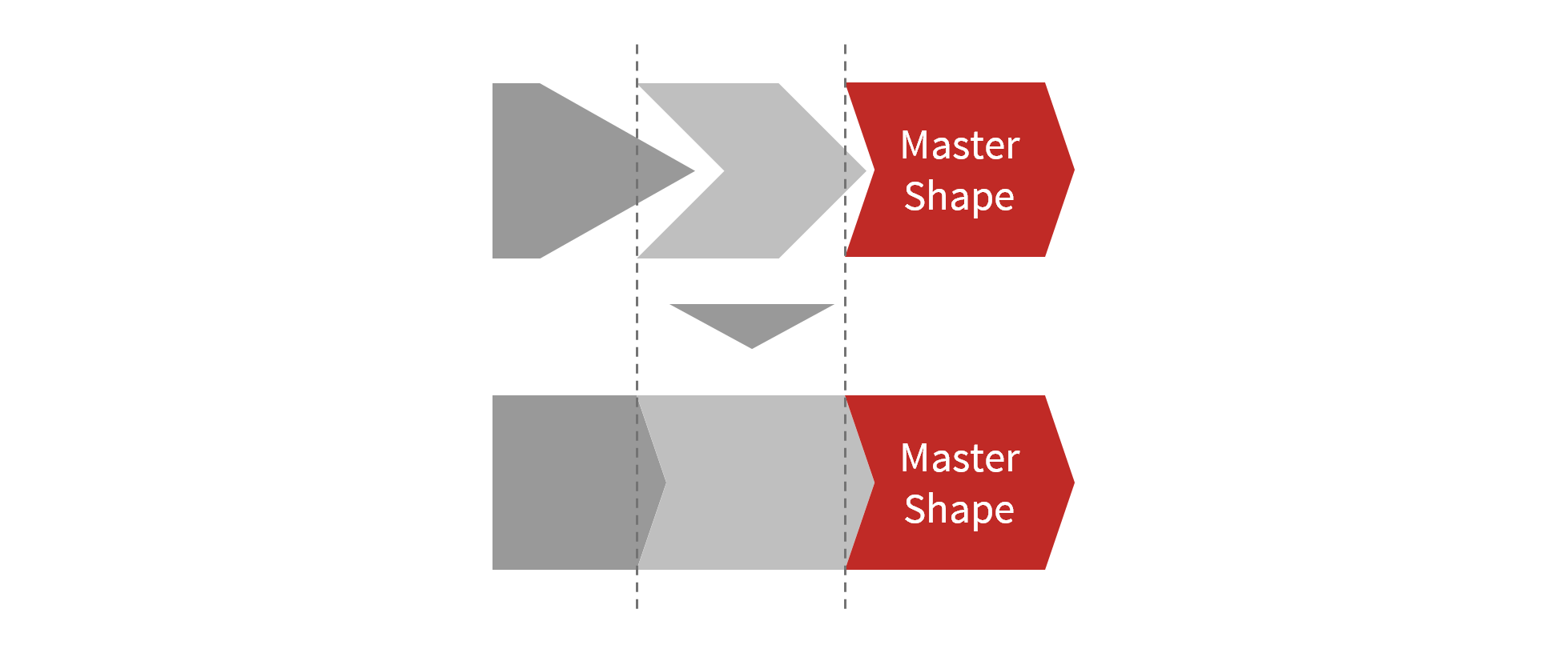
Align Process Chain
Align the selected block arrows to form a process chain. The Master will define the angle, the position and sizing for all other block arrows in the process chain. The gaps between block arrows are filled from left to right and from top to bottom.
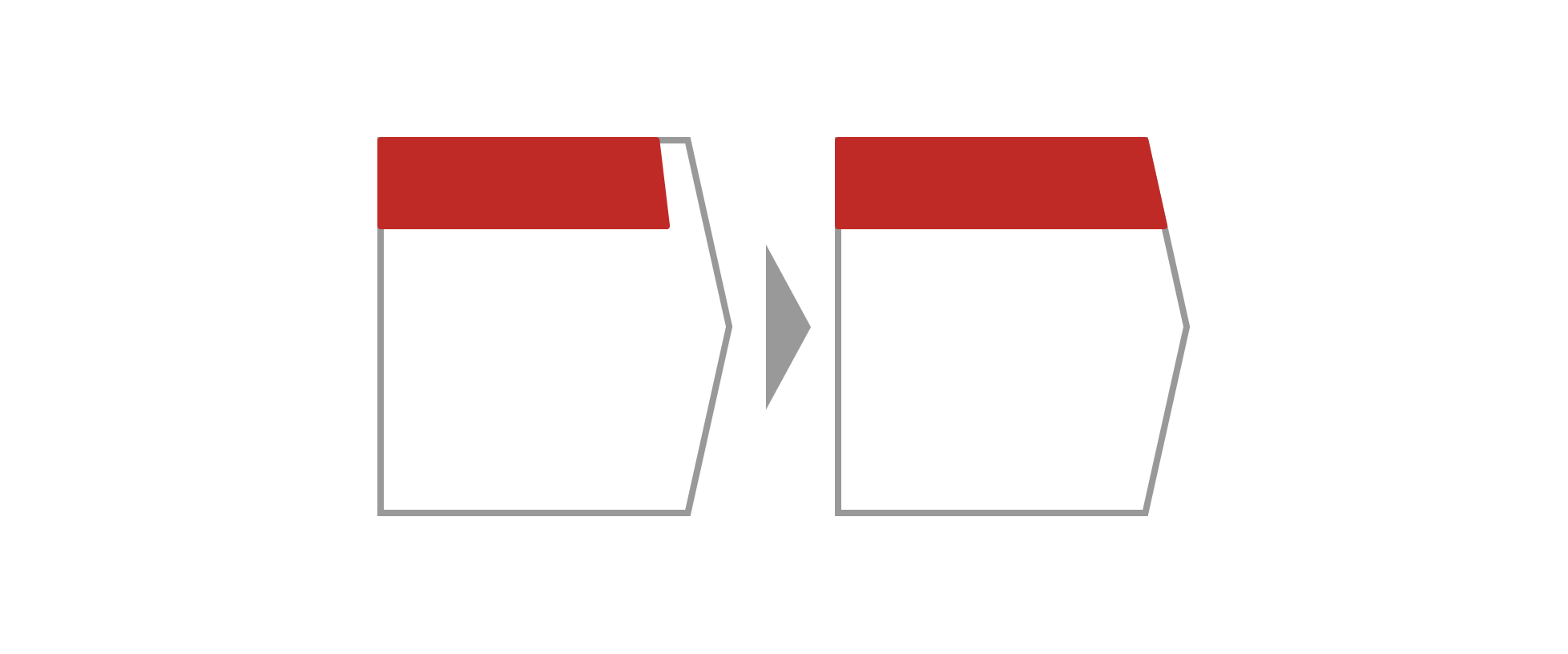
Adjust Pentagon Header
Adjust the header boxes of headed Conclusion boxes (standard elements in the Element Wizard). Select a pentagon (block arrow) and the corresponding header box before using this feature.
Align Block Arrow
Apply a standard style to all selected block arrows or define your own metrics based on the Master. The Master is always the object that you selected last.
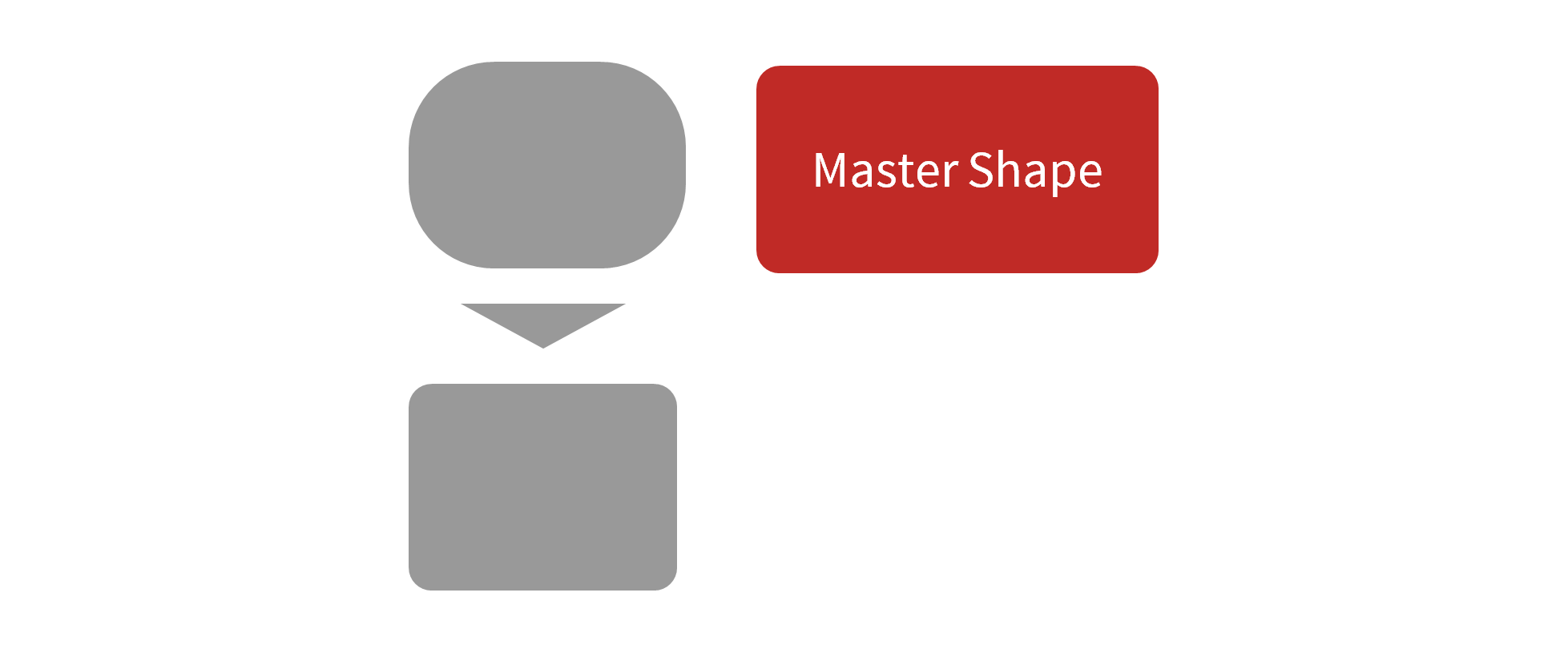
Align Rounded Rectangles
Define the radius for the selected rounded rectangles or use the Master object’s value. The Master is always the object that you selected last.
Custom Color Palettes | Color Picker


Set the fill | line | font color of all currently selected objects. Available colors depend on your individual customization.
Pick any color from anywhere on the screen and add it to the palette of recently used colors or apply it directly to the selected objects.


Convert to RGB | Convert to Theme Colors

Convert all theme colors in current selection to RGB values to make the colors independent of the slide master and theme used.
Convert all matching RGB values in current selection to theme colors to automatically adapt to the slide master and theme used.
Split | Merge Text Boxes

Split the selected text box at the cursor position to create two separate text boxes.
Merge the selected text boxes in a single text box. The text boxes will be merged in the order of selection.

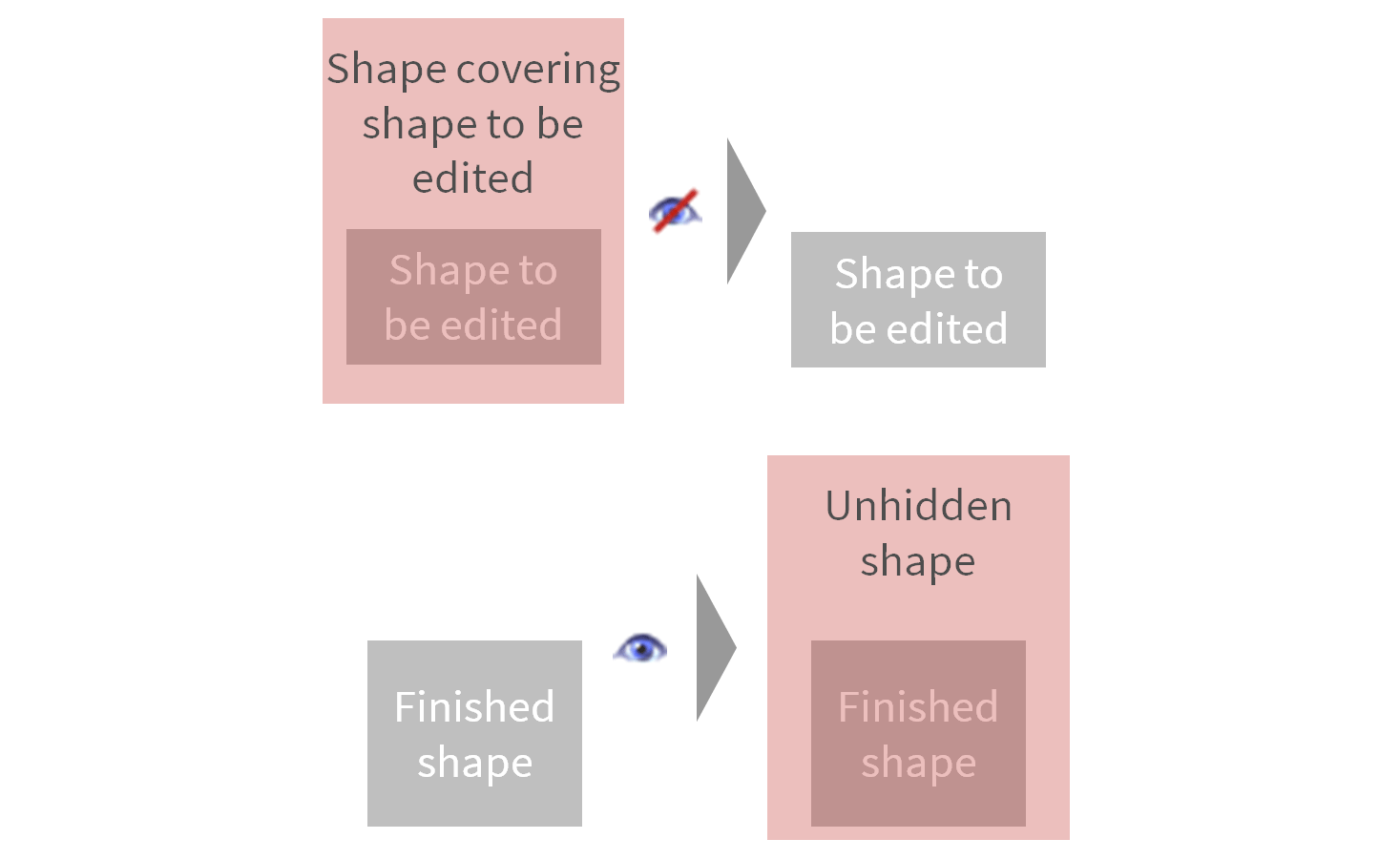
Hide Selected Objects Temporarily

The objects will maintain their horizontal, vertical and layer position while hidden. Hidden objects can be shown again with the command Unhide Hidden Objects. This is particularly useful if you have a lot of overlapping or layered objects on a slide. You can easily get rid of everything that is in the way.
Navigation


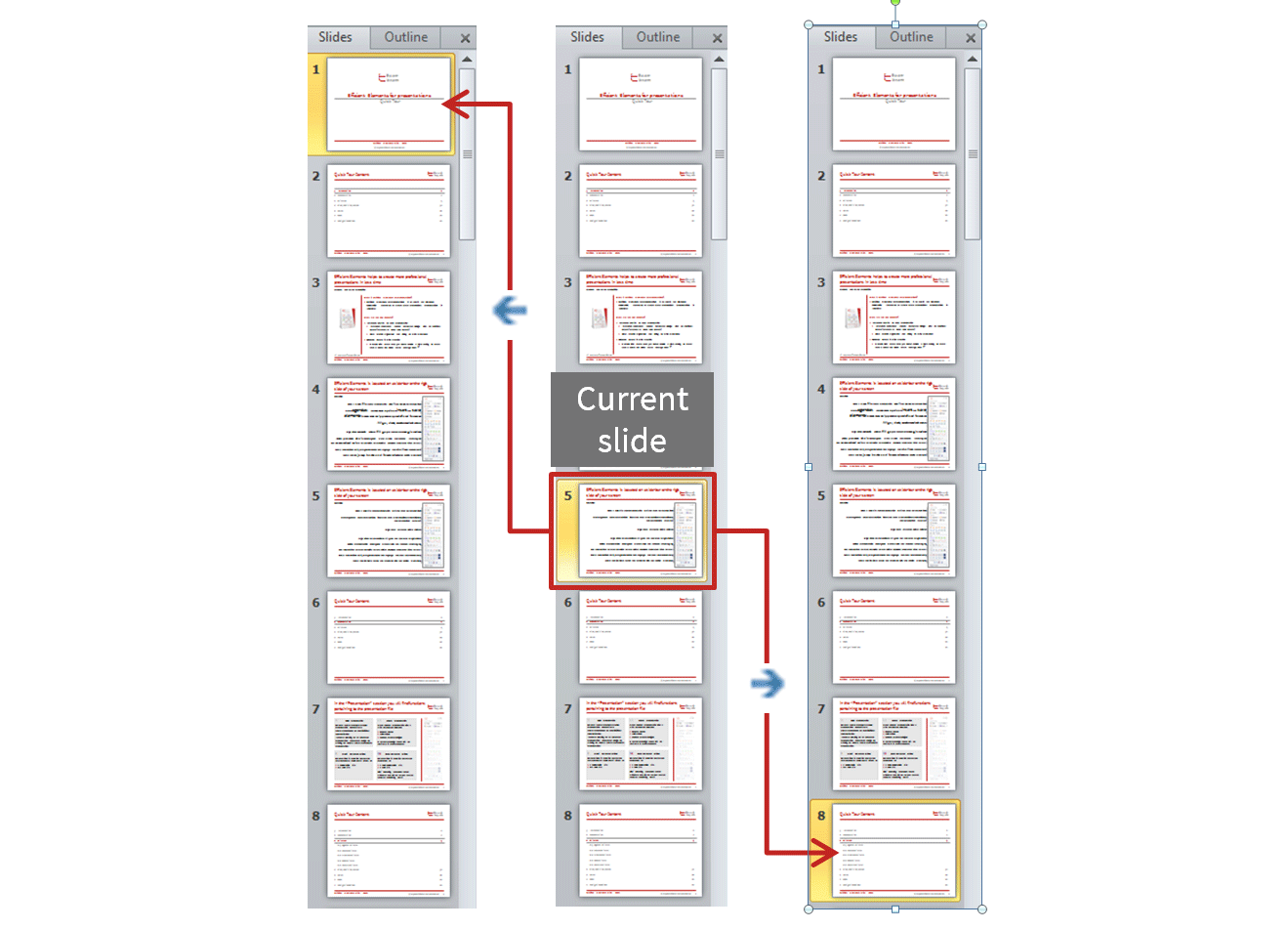
Navigate long presentations quickly with the Navigation functions: Go to previous / next slide in history or enter slide number.
Language | User Interface Settings
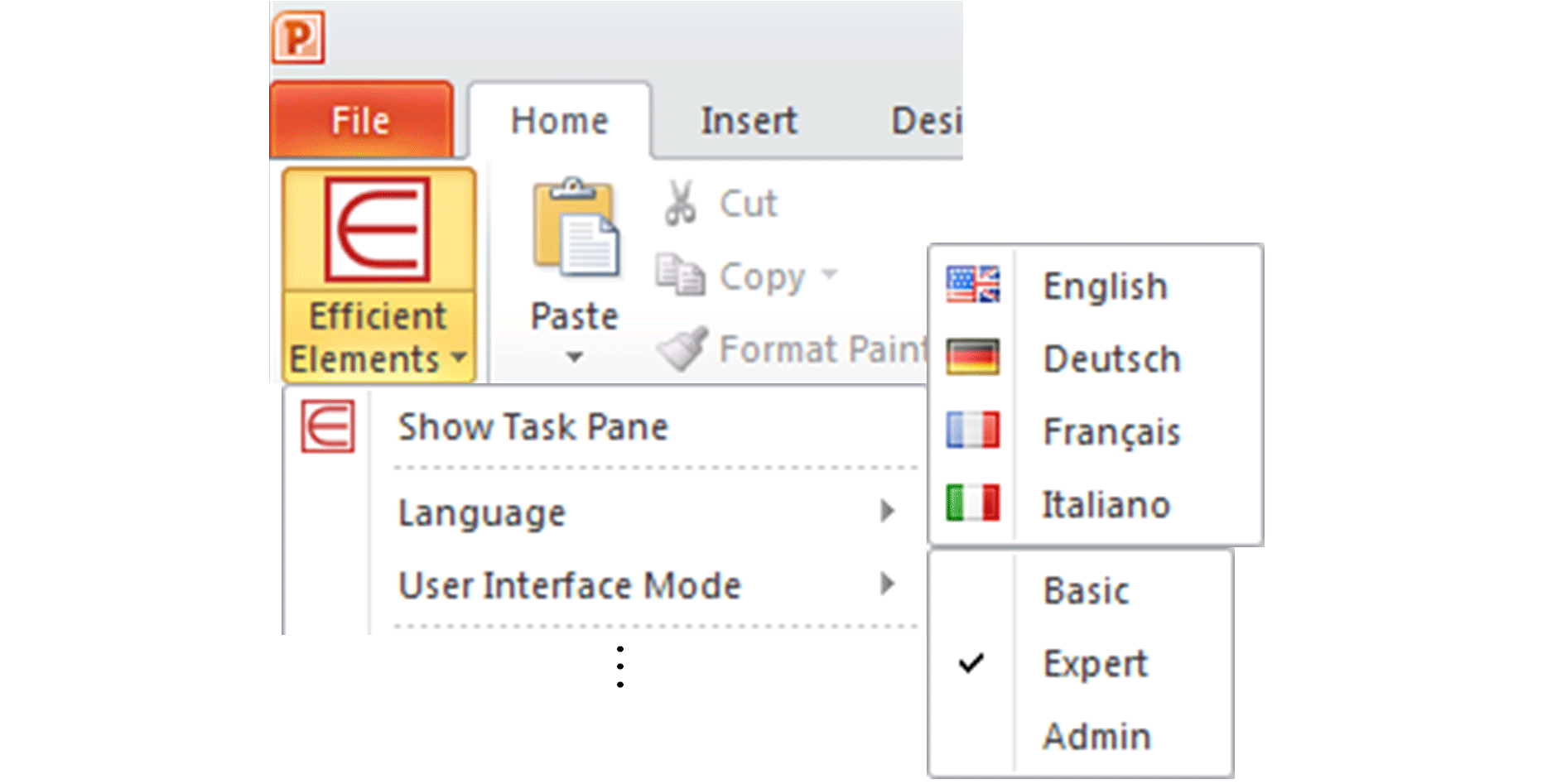
Pick your preferred language. Currently available languages are English, French, German, Italian, Simplified Chinese, Traditional Chinese.
Adjust the user interface to suit your needs:
- Basic – display only the most important functions
- Expert – the default setting displaying all functions
- Admin – includes additional functions for customizing Efficient Elements for presentations
Time Saving
Finally time to take care of your real job instead of wasting time with office applications.
- Take advantage of ready-to-use slide templates
- Let the Wizards do the work for you
- Get done with less clicks thanks to the optimized user interface
- Save an average of 2 hours per week 1)
Corporate Design
It has never been easier to comply with your company’s corporate design guidelines.
- Generate agendas derived from your company’s agenda templates
- Insert slide elements from your customized library
- Select colors from a palette defined by your style guide
- Apply your style guide with one-click-formatting
- Format standard bullets to match your style guide
Quality
Get professional results of your work satisfying the highest quality standards.
- Be more precise with the Efficient Elements Master Shape Concept
- Use slide templates and elements that have been minutely prepared for your PowerPoint master
- Use the Format Wizard to place objects on predifined exact positions
- Create a summary of your action titles to check your storyline
1) Siemens Efficiency Study 2010
Licenses | ||||||||
|---|---|---|---|---|---|---|---|---|
EE for presentations - Single User License  For Windows and macOS, incl. updates and support License Period 23 September 2026 - 22 September 2027 |
|
|
||||||
EE for presentations - Multi User License Per user, for Windows and macOS, incl. updates and support, license true-up at the end of the license period |
|
|||||||
EE for presentations - Corporate License For Windows and macOS, incl. updates and support, valid for all employees |
Please contact us for an individual offer |
|||||||
Customization | ||||||||
EE for presentations - Standard Customization Package Per style, based on one of our standard styles, for one platform (Windows or macOS), additional customization charged per hour |
|
|||||||
EE for presentations - Platform Package Per style, customization upgrade to second platform (Windows or macOS) |
|
|||||||
Training | ||||||||
EE for presentations - Webinar+ Individual webinar for up to 100 participants, 60 minutes, English or German, incl. recording |
|
|||||||
EE for presentations - In-depth Training Individual online training for up to 100 participants, 120 minutes, English or German, incl. recording |
|
|||||||


All prices are excluding VAT and travel cost (where applicable). Users are uniquely identified by the combination of Windows / macOS username and domain / hostname (or hash values thereof). If the same person uses multiple such combinations, each combination is counted separately for licensing. Please review our General Terms and Conditions.
Efficient Elements shows its true potential, both in terms of slide quality and time saving, when it is customized to your company’s corporate design.
We highly recommend to take advantage of our customization services – not because we are good sales people, but because it makes a lot of sense for you.
We offer the following options to customize Efficient Elements for presentations to your needs:
Good training is half way to success.
To help you getting started with Efficient Elements, we offer three different trainings:
| Free Webinar | Webinar+ | In-depth Training | |||||||||||||
|---|---|---|---|---|---|---|---|---|---|---|---|---|---|---|---|
| Sign Up or Watch Recording |
|||||||||||||||
| You will get a first overview of Efficient Elements for presentations | You will get a first overview of Efficient Elements for presentations | You will get an in-depth introduction to Efficient Elements for presentations with all it features | |||||||||||||
| Q&A at the end | Q&A at the end | Questions any time during the training | |||||||||||||
| Standard EE version | Customer-specific EE version | Customer-specific EE version | |||||||||||||
| Watch recording | Incl. recording | Incl. recording | |||||||||||||
| English or German | English or German | English or German | |||||||||||||
| 1 hour | 1 hour | 2 hours | |||||||||||||
| Sign up now | By arrangement | By arrangement | |||||||||||||
| Webinar / Recording | Webinar | Webinar | |||||||||||||
| Individual sign-up | Up to 100 participants | Up to 100 participants | |||||||||||||
1) |
FREE |
|
|
Requires a fast internect connection (e.g. DSL), which may cause third-party costs. Please contact us before purchasing to check the technical feasibility of a webinar (webinar software, firewall restrictions, etc.).
1) Independent of the number of participants
Software
Efficient Elements for presentations
Download the 30-day trial version of Efficient Elements for presentations:
Windows
Download
Version v4.5.3200.1
No admin privileges?
Customized Versions
Please contact us at info@efficient-elements.com to get the download link for your customized version of Efficient Elements.
Documentation
Efficient Elements for presentations – Getting Started Guide
Efficient Elements for presentations – Handbook
Terms and Conditions
General
Efficient Elements for presentations helps the user with creating exact and well structured presentations in very little time. As time becomes more and more costly the potential savings can be substantial.
You can download a free 30-day trial version of Efficient Elements for presentations from the Downloads section on our website. If you would like to continue using the product after the trial period, you can purchase a license in our web shop or simply order via email
Students and educational institutions are eligible for free licenses.
Students and educational institutions are eligible for free licenses.
In case you have already receive a license key for Efficient Elements for presentations, you can download the customized edition from the Downloads section on our website. In case you do not have a key yet and would like to receive a free 30-day trial of the customized edition, please contact us.
Yes, we also offer Efficient Elements for presentations for macOS. Due to technical limitations the macOS version does not offer the exact same feature set as the Windows version. Please download and install the free 30-day trial version to see for yourself.
Efficient Elements for presentations costs 119 EUR / USD 159 (excl. VAT) per user per year, depending on your country. VAT may or may not be applicable, please check our web shop to see whether it is applicable in your case.
Installation
After downloading Efficient Elements for presentations from the Downloads section on our website simply execute the installation (msi) file and follow the installation instructions.
If you are in a corporate environment, please check with your IT department first before installing Efficient Elements for presentations. Your IT department might have to install the add-in for you.
If you are in a corporate environment, please check with your IT department first before installing Efficient Elements for presentations. Your IT department might have to install the add-in for you.
Our standard installation package of Efficient Elements for presentations requires administrator privileges and is installed per-machine.
If you don't have administrator privileges, you can download our per-user installer here.
If you don't have administrator privileges, you can download our per-user installer here.
The default installation path of Efficient Elements for presentations depends on the installation type:
- Per-user installation: Local Application Data
- Per-machine installation: Program Files (x86)
In order to obtain full functionality of Efficient Elements for presentations, it is necessary to activate the product using your personal license key. To activate your license an internet connection is required.
Please contact us. We will discuss the possibilities for activation within your corporate network with your IT department.
Once Efficient Elements for presentations has been installed, it will prompt you to activate the license upon starting Microsoft PowerPoint. The computer will then establish a connection with our license server. If for some reason you should not be able to activate the product during installation you will be prompted again the next time you start Microsoft PowerPoint. Should your company network not permit an automatic activation please click here.
Unless you re-install your computer or change hardware you only need to active your license once during the license period. Once the license period is expired, you will be prompted to activate Efficient Elements for presentations again. Until you re-activate your license, you cannot use Efficient Elements.
You can use your license key as many times as you need to re-install Efficient Elements for presentations on your machine. Please make sure your personal license key does not get stolen or passed on to anyone. We will keep track of all installations and not tolerate license abuse.
If you are in a corporate environment, updates may automatically be installed through your IT department. Please check with your IT department first before installing any update.
For standard per-user installations, you will be automatically informed by the software, once an update is available. If there is an update available, you will be prompted to download the update shortly after starting PowerPoint. You can choose to download right away or postpone the update to a later point in time. In case you need to interrupt the download, you will be prompted again the following day to reattempt the download.
After the download of the update has been completed, you will need to close PowerPoint before it can be installed. Please make sure not to interrupt the installation process, as the installation might be corrupted otherwise and you may not be able to use the add-in until you have reinstalled it manually.
For standard per-user installations, you will be automatically informed by the software, once an update is available. If there is an update available, you will be prompted to download the update shortly after starting PowerPoint. You can choose to download right away or postpone the update to a later point in time. In case you need to interrupt the download, you will be prompted again the following day to reattempt the download.
After the download of the update has been completed, you will need to close PowerPoint before it can be installed. Please make sure not to interrupt the installation process, as the installation might be corrupted otherwise and you may not be able to use the add-in until you have reinstalled it manually.
Efficient Elements for presentations is compatible with 64bit versions of both Microsoft Windows and Microsoft Office.
License
This depends on the license type you have purchased:
- Single user license: valid for one user only
- Multi user license: valid for multiple users as agreed upon in license contract
- Corporate license: valid for any user in your company as agreed upon in license contract
Efficient Elements for presentations is licensed per user. The licensed user is entitled to install and activate the product on multiple machines / Microsoft Windows accounts as long as the same combination of Windows / macOS username and domain / hostname (or hash values thereof) is used and only he/she has access to them.
If you need to pass on one of your computers to a colleague, please uninstall the software on that machine or purchase an additional license.
The use of Efficient Elements for presentations is only permitted with a valid license. After the license has expired you cannot use Efficient Elements until you extend your license.
If you are in a corporate environment, please check with your IT department first, they may purchase and distribute new license keys centrally. Otherwise, please contact us at info@efficient-elements.com or visit our web shop to obtain a new license key.
Please visit our web shop or contact us at info@efficient-elements.com to obtain a new license key.
Getting Started
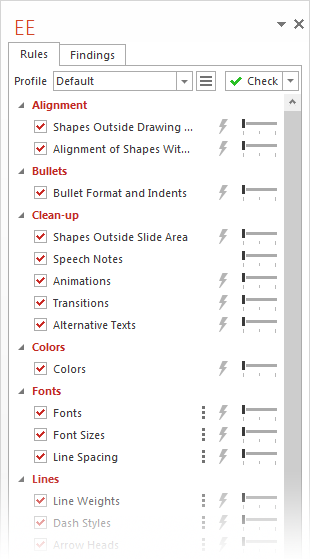
After installing Efficient Elements you should find a task pane labeled 'EE' or 'Efficient Elements' on the right side of the PowerPoint window. If needed, you can close this task pane by clicking on the 'x' located in the top right corner of the pane. To open the EE task pane again, please click on the 'Efficient Elements' button located on the left side of the PowerPoint 'Home' tab.
It is possible to change the language of Efficient Elements for presentations. You will find the language setting in the 'Efficient Elements' menu located on the left side of the PowerPoint 'Home' tab. Currently the following languages are available:
- English
- French
- German
- Italian
- Portuguese
- Russian
- Spanish
- Simplified Chinese
- Traditional Chinese
Yes, it is possible to adjust the user interface of Efficient Elements for presentations. You will find the user interface mode setting in the 'Efficient Elements' menu located on the left side of the PowerPoint 'Home' tab. The following presets are available:
- Expert - the default setting displaying all functions
- Basic - display only the most important functions
Yes we do. Please visit the Training section on our website to either sign up for a free webinar or to book one of our other training offerings.
There are different ways to receive help and explanations for Efficient Elements functions:
- Via 'Mouse-Over': move the cursor onto of the button for which you require help. A tooltip will give you brief description of the function.
- In the EE menu on the HOME tab: Here you will find the offline available documentation for Efficient Elements for presentations.
- On our website: visit www.efficient-elements.com/tutorials/.
For feedback, ideas or suggestions you can contact us using the 'Send Feedback' button in the 'Efficient Elements' menu located on the left side of the PowerPoint 'Home' tab. Your e-mail client should automatically open a new message. If this doesn't work, please contact us at feedback@efficient-elements.com.
For your convenience we included a 'Recommend to a friend' button in the 'Efficient Elements' menu located on the left side of the PowerPoint 'Home' tab. The button will compose a new e-mail in your e-mail client with a pre-written text including all necessary information. If this doesn't work, please recommend our product referring your friends or colleagues to our website at www.efficient-elements.com.
Customization
Yes, it is possible to further customize Efficient Elements for presentations to your corporate or personal needs. Please visit www.efficient-elements.com/customization/ and contact us at info@efficient-elements.com to discuss the details.
Please refer to www.efficient-elements.com/customization/for customization options. For details please contact us at info@efficient-elements.com to receive an customization offer for your company.
You can use our "Quick Customization Wizard" which you will find in the EE menu in your "Start" tab. Please contact us at info@efficient-elements.com for further information on our customization services.
Yes, we do. Please refer to www.efficient-elements.com/customization/for customization options. For details please contact us at info@efficient-elements.com to receive an customization offer for your company.
Yes you can. Please refer to www.efficient-elements.com/customization/for customization options. For details please contact us at info@efficient-elements.com to receive an customization offer for your company.
Yes, Efficient Elements can be fully customized to fit your corporate design. Please refer to www.efficient-elements.com/customization/for customization options. For details please contact us at info@efficient-elements.com to receive an customization offer for your company.
Using Efficient Elements for presentations
There are different ways to receive help and explanations for Efficient Elements functions:
- Via 'Mouse-Over': move the cursor onto of the button for which you require help. A so-called tooltip will give you brief description of the function.
- In the Microsoft Start menu: Click on 'All Programs' - 'Efficient Elements' - 'Efficient Elements for presentations'. Here you will find the offline available documentation for Efficient Elements for presentations.
- On our website: visit www.efficient-elements.com/tutorials/. Alternatively you will find direct links in the 'Efficient Elements' menu located on the left side of the PowerPoint 'Home' tab.
- Via online training: Sign up - it is free! Visit www.efficient-elements.com/training/ to find out more about our training offerings.
Trouble Shooting
Error messages pop up, if something unforeseen occurs. Please briefly describe the problem and what you did before you encountered the error message in the text box provided. Please also fill in the fields 'Name' and 'Contact' so that we can contact you in case we need more information. Our software specialists will fix the problem as soon as possible.
After installing Efficient Elements you should find the EE task pane on the right side of the PowerPoint window. If needed, you can close this task pane by clicking on the 'x' located in the top right corner of the pane. To open the EE task pane again, please click on the 'Efficient Elements' button located on the left side of the PowerPoint 'Home' tab.
The 'Efficient Elements' button is located on the very left side of the PowerPoint 'Home' tab. Should you not be able to find this button there, Efficient Elements for presentations has either not been installed properly or it has been deactivated by PowerPoint. Please first check if it has been disabled:
Click the 'Office/File Button', go to '(PowerPoint) Options', 'Add-Ins', select 'Disabled Items' from the dropdown at the bottom, click 'Go...'. If you find 'Efficient Elements for presentations' in the list, select it and click 'Enable'. After restarting PowerPoint Efficient Elements for presentations should be loaded again.
If you do not find it in the list, click 'Cancel' and select 'COM Add-Ins' from the dropdown at the bottom, click 'Go...'. If you find 'Efficient Elements for presentations' in this list, check the corresponding checkbox and click 'OK'. After restarting PowerPoint Efficient Elements for presentations should be loaded again.
If you do not find it in this list, click 'Cancel'. Efficient Elements for presentations has not been installed properly. Please reinstall it and follow the above steps again if needed. In case this does not solve the problem, please contact us.
Click the 'Office/File Button', go to '(PowerPoint) Options', 'Add-Ins', select 'Disabled Items' from the dropdown at the bottom, click 'Go...'. If you find 'Efficient Elements for presentations' in the list, select it and click 'Enable'. After restarting PowerPoint Efficient Elements for presentations should be loaded again.
If you do not find it in the list, click 'Cancel' and select 'COM Add-Ins' from the dropdown at the bottom, click 'Go...'. If you find 'Efficient Elements for presentations' in this list, check the corresponding checkbox and click 'OK'. After restarting PowerPoint Efficient Elements for presentations should be loaded again.
If you do not find it in this list, click 'Cancel'. Efficient Elements for presentations has not been installed properly. Please reinstall it and follow the above steps again if needed. In case this does not solve the problem, please contact us.
In some rare occasions, Microsoft PowerPoint may disable the Efficient Elements for presentations add-in in 'safe mode'. To activate the add-in again, please follow these steps:
Click the 'Office/File Button', go to '(PowerPoint) Options', 'Add-Ins', select 'Disabled Items' from the dropdown at the bottom, click 'Go...'. If you find 'Efficient Elements for presentations' in the list, select it and click 'Enable'. After restarting PowerPoint Efficient Elements for presentations should be loaded again.
If you do not find it in the list, click 'Cancel' and select 'COM Add-Ins' from the dropdown at the bottom, click 'Go...'. If you find 'Efficient Elements for presentations' in this list, check the corresponding checkbox and click 'OK'. After restarting PowerPoint Efficient Elements for presentations should be loaded again.
If you do not find it in this list, click 'Cancel'. Efficient Elements for presentations has not been installed properly. Please reinstall it and follow the above steps again if needed. In case this does not solve the problem, please contact us.
Click the 'Office/File Button', go to '(PowerPoint) Options', 'Add-Ins', select 'Disabled Items' from the dropdown at the bottom, click 'Go...'. If you find 'Efficient Elements for presentations' in the list, select it and click 'Enable'. After restarting PowerPoint Efficient Elements for presentations should be loaded again.
If you do not find it in the list, click 'Cancel' and select 'COM Add-Ins' from the dropdown at the bottom, click 'Go...'. If you find 'Efficient Elements for presentations' in this list, check the corresponding checkbox and click 'OK'. After restarting PowerPoint Efficient Elements for presentations should be loaded again.
If you do not find it in this list, click 'Cancel'. Efficient Elements for presentations has not been installed properly. Please reinstall it and follow the above steps again if needed. In case this does not solve the problem, please contact us.
When the license period is expired, it is necessary to reactivate the program. Please contact us to acquire a new activation code or contact your administrator to get the code for you. If your license is not expired yet, please enter the code again to perform the activation again. Your computer needs to be connected to the internet when performing the activation.
Please change your firewall settings to allow Efficient Elements for presentations to establish an internet connection. When in doubt, please refer to your administrator or contact us.
Some email programs, including older versions of Lotus Notes, do not support the execution of certain web links (i.e. mailto: links). Please simply send your colleagues and friends a link to our website: www.efficient-elements.com.
Make sure you have full access to your 'Temp' folder:
- Open Windows Explorer, type %localappdata% and press
. - Right click on the 'Temp' folder and select 'Properties'.
- Select the tab 'Security' and click 'Edit'.
- In the 'Permissions' dialog select your user name under 'Group or user names' or add your user name clicking on 'Add...'.
- Set the check mark next to 'Full control' and close the 'Permissions' and 'Properties' dialogs clicking 'OK'.
- Try to install the .msi package again.
Windows 32-bit
- Click 'Start', click 'All Programs', and then click 'Accessories'.
- Right-click 'Command Prompt', and then click 'Run as administrator'.
- When the User Account Control dialog box appears, click 'Continue'.
- Type the following command and confirm pressing 'Enter':
reg delete "HKCU\SOFTWARE\Classes\CLSID\{B54F3741-5B07-11CF-A4B0-00AA004A55E8}" /f

regsvr32 "C:\Windows\System32\vbscript.dll" - Try to install the .msi package again.
- Click 'Start', click 'All Programs', and then click 'Accessories'.
- Right-click 'Command Prompt', and then click 'Run as administrator'.
- When the User Account Control dialog box appears, click 'Continue'.
- Type the following commands and confirm pressing 'Enter':
reg delete "HKCU\SOFTWARE\Classes\Wow6432Node\CLSID\{B54F3741-5B07-11CF-A4B0-00AA004A55E8}" /f

regsvr32 "C:\Windows\SysWow64\vbscript.dll" - Try to install the .msi package again.
- Download and execute the following 'Fix it' tool from the Microsoft website:
http://support.microsoft.com/mats/Program_Install_and_Uninstall/ - Accept the license agreement if you are fine with it
- Select 'Detect problems and apply the fixes for me (recommended)'
- Select 'Installing'
- Select 'Efficient Elements for presentations - xxx Edition' from the list and click 'Next'
- Select 'Yes, try uninstall' if prompted
- Check whether the repair has been successful and close the tool
- Try to install Efficient Elements again